October 17, 2026. Microsoft is testing a small but unusually practical accessibility upgrade in Windows 11: Magnifier can now treat each connected display as its own workspace.
The feature appears in Windows 11 Insider Preview Beta Build 26220.9739, one of the preview builds Microsoft announced on October 16. It is a test feature, not a promise that every Windows 11 PC will receive it on the same schedule.
Different zoom on every screen
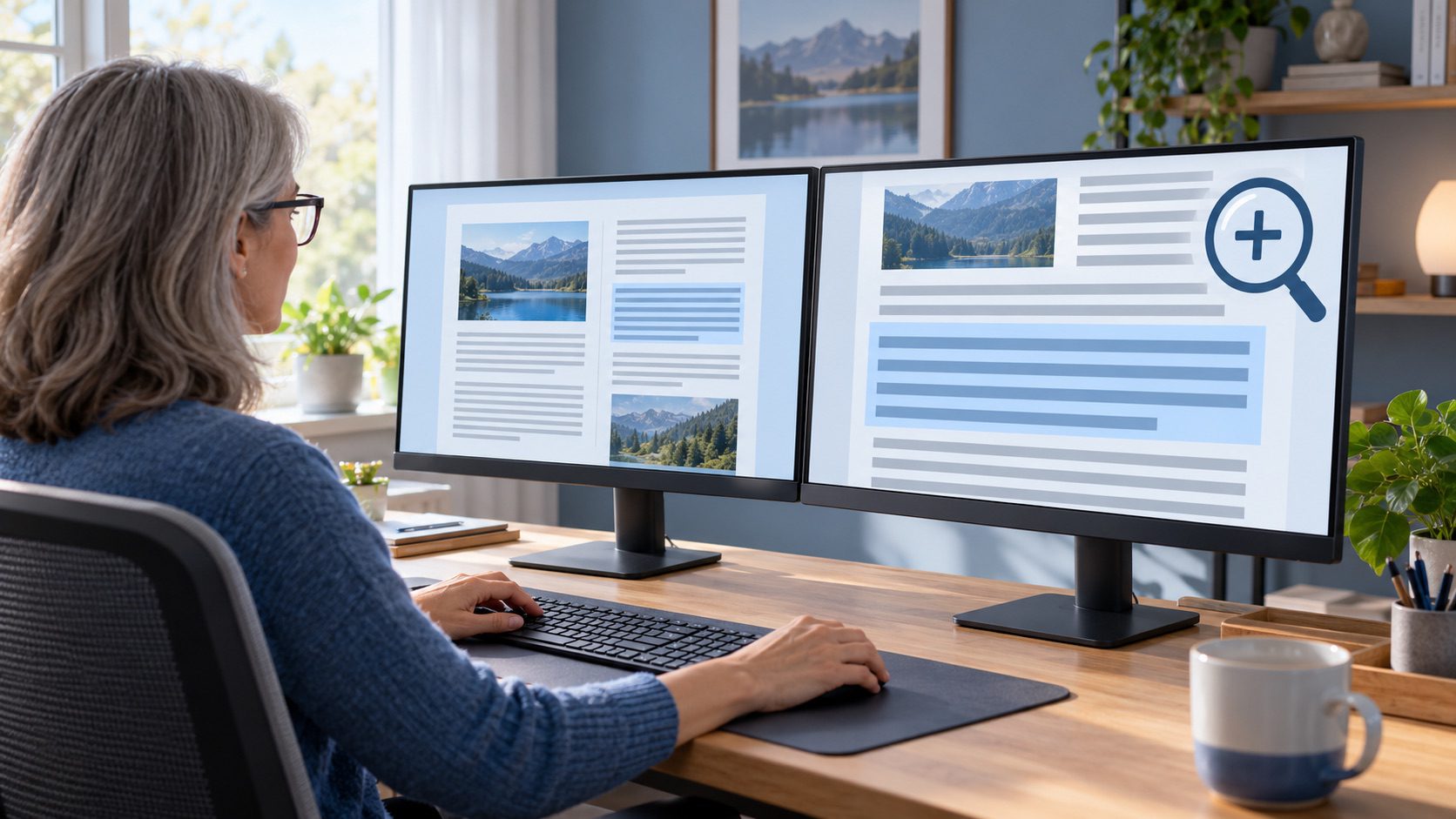
Today’s multi-monitor Magnifier experience can feel like one giant zoomed canvas stretched across displays. The new approach lets each monitor keep an independent zoom level. A low-vision user could, for example, magnify detailed reference material to 300 percent on one display while keeping a document or video at 150 percent on another.
The independent view works when Windows is set to Extend the desktop. It is not intended for Duplicate mode, where two displays mirror the same content. Microsoft says users can adjust zoom with the familiar Windows key plus or minus shortcuts, Ctrl+Alt with the mouse wheel, the Accessibility settings page or Magnifier’s toolbar.
A locked reference can stay put
The build also introduces a viewport lock. That can keep a magnified reference area fixed on one monitor while the user works somewhere else. The locked view remains live and interactive rather than becoming a screenshot, which could help with tasks such as following instructions, checking a spreadsheet cell or keeping a video-call participant visible.
Microsoft lists Ctrl+Windows+K as the command to lock or unlock a view. Windows+Esc releases all locked views. An optional Ctrl+Alt+P shortcut can also be enabled for the feature.
What to know before looking for it
- The change is in a Windows Insider Beta build, so it may evolve, pause or disappear before a broad release.
- It requires an extended desktop rather than mirrored displays.
- The preview enables the new multi-monitor behaviour by default, but testers can return to the older single-view approach.
- Insider builds can include unfinished features and other bugs; they are not ideal for a primary production PC.
Accessibility improvements are often most effective when they adapt to the way people already use their computers. Independent zoom and a persistent reference view do exactly that: they make a two-screen setup more flexible without asking users to relearn the rest of Windows.